How to Set Up a Free Camera Game in Your Browser
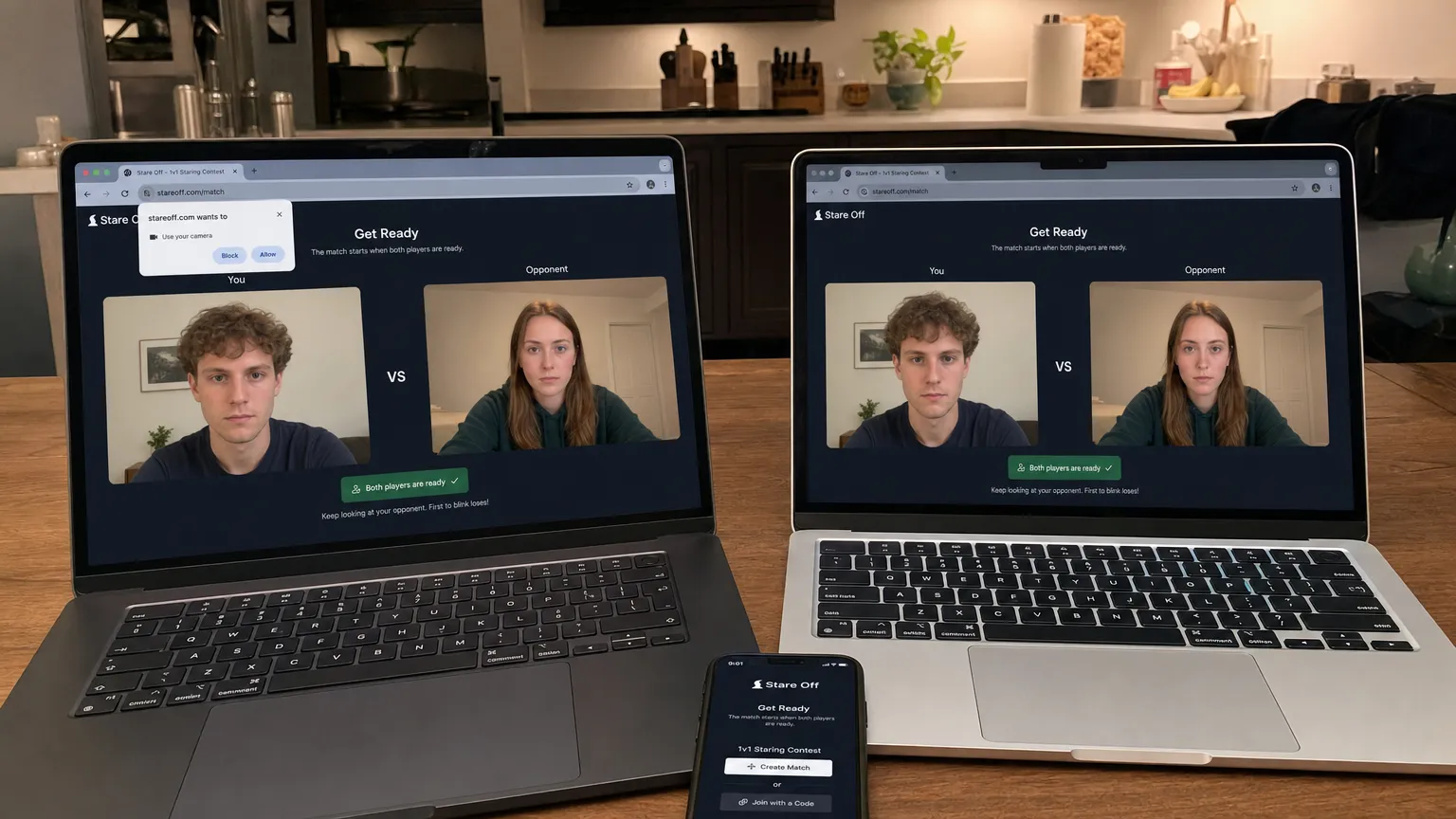
A browser camera game should feel simple: open a link, allow your webcam, and start playing. The trick is making sure your browser, camera permission, lighting, and connection are ready before the match begins.
If you want to set up a free camera game in your browser, you do not need a console, capture card, or special streaming software. In most cases, the camera built into your laptop or phone is enough. For a game like Gawkin, where players face off in live 1v1 staring duels and the first to blink loses, a clean setup can make the difference between a smooth match and a frustrating false start.
This guide walks through the full setup, from browser permissions to troubleshooting, so you can get into a camera-based game quickly and confidently.
What Is a Browser Camera Game?
A browser camera game is any web-based game that uses your webcam as part of the experience. Instead of only clicking, tapping, or pressing keys, your camera becomes part of the gameplay.
That can mean different things depending on the game. Some use motion, facial positioning, gestures, or expression tracking. In a live staring contest game, the camera is essential because it lets players lock eyes, compete in real time, and prove who blinked first.
The main advantage is convenience. A browser-based camera game can work without a download, without a launcher, and often without creating an account. You open the site, grant permission, check that your face is visible, and play.
On Gawkin, for example, players can jump into live 1v1 staring duels in the browser with no login required. The game also supports solo warm-up, tournaments, live chat, spectator mode, and an iPhone app if you prefer playing from your phone.
What You Need Before You Start
A free camera game does not require a complicated gaming setup, but a few basics matter. The goal is to help your browser capture a clear, stable video feed and keep the match responsive.
| Setup item | Why it matters | Quick check |
|---|---|---|
| Working webcam | The game needs a live camera feed | Open your camera app or browser preview |
| Modern browser | Camera access relies on current web APIs | Use an updated version of Chrome, Safari, Edge, or Firefox |
| Secure website | Browsers restrict camera access on unsafe pages | Look for HTTPS in the address bar |
| Good lighting | Face and eye visibility affect gameplay quality | Face a window or soft lamp |
| Stable internet | Live 1v1 matches need low interruptions | Close heavy downloads and video streams |
| Camera permission | The browser must be allowed to use the camera | Accept the camera prompt for the game site |
For most players, the biggest setup issues come from blocked permissions, poor lighting, or another app already using the webcam. Fixing those before you join a match saves time.
Step 1: Choose a Trusted Browser Game
Start with a camera game that clearly explains what it does and runs on a secure connection. Camera access is sensitive, so do not grant permission to random websites you do not trust.
Modern browsers are designed to protect webcam access. According to MDN Web Docs, browser camera access through getUserMedia() requires user permission and is available only in secure contexts. In plain English, the site has to ask, and the browser has to consider the page secure.
Before allowing access, check three things:
- The site uses HTTPS.
- The game has a clear reason to use your camera.
- The browser permission prompt matches the site you intended to use.
If you are looking for a camera game built around fast setup, Gawkin is designed for instant browser play. You can open the site, allow camera access, and start a staring contest against a stranger or friend without installing anything.
Step 2: Open the Game in an Updated Browser
Use a browser that is up to date. Camera permissions, video capture, and real-time playback all work better when your browser has the latest security and performance updates.
On desktop, Chrome, Edge, Safari, and Firefox are common choices. On mobile, Safari is the default for iPhone users, and Chrome is widely used on Android. If a game offers a native app, such as Gawkin's iPhone app, that can also be an option if you prefer a phone-first experience.
If the game does not load correctly, try a different browser before assuming the game is broken. Some camera issues are browser-specific, especially if you have strict privacy extensions or older device settings.
Step 3: Allow Camera Permission
When the browser asks whether the site can use your camera, choose allow. Without that permission, the game cannot see you and cannot start the camera-based part of the experience.
If you accidentally click block, you can usually fix it from the browser's site settings. In Chrome, Google's help documentation explains how to change camera and microphone permissions for specific sites. Other browsers have similar permission controls near the address bar or in privacy settings.
A good rule is to allow camera access only for the current session or for sites you trust. If you are just testing a new game, temporary permission is enough.
Step 4: Select the Right Camera
If your device has more than one camera, make sure the browser is using the one you want. This matters for laptops connected to external webcams, phones with front and rear cameras, and desktops with multiple video devices.
For a staring contest or face-based game, the front-facing camera is usually best. It should show your full face clearly, especially your eyes. If the game preview shows the wrong camera, look for an in-game camera selector or change the camera in your browser's site settings.
Close video meeting apps before playing. Zoom, FaceTime, Teams, Discord, and other camera tools can sometimes keep the webcam busy, which prevents the browser game from accessing it.
Step 5: Position Your Camera and Lighting
Camera games work best when your face is centered and evenly lit. You do not need studio lighting. You just need enough light for the camera to see your face without harsh shadows or glare.
Put the camera near eye level, either by raising your laptop or placing your phone on a stand. Sit close enough that your face fills a comfortable part of the frame, but not so close that your forehead or chin gets cut off. If you wear glasses, tilt your light source slightly to reduce reflections.
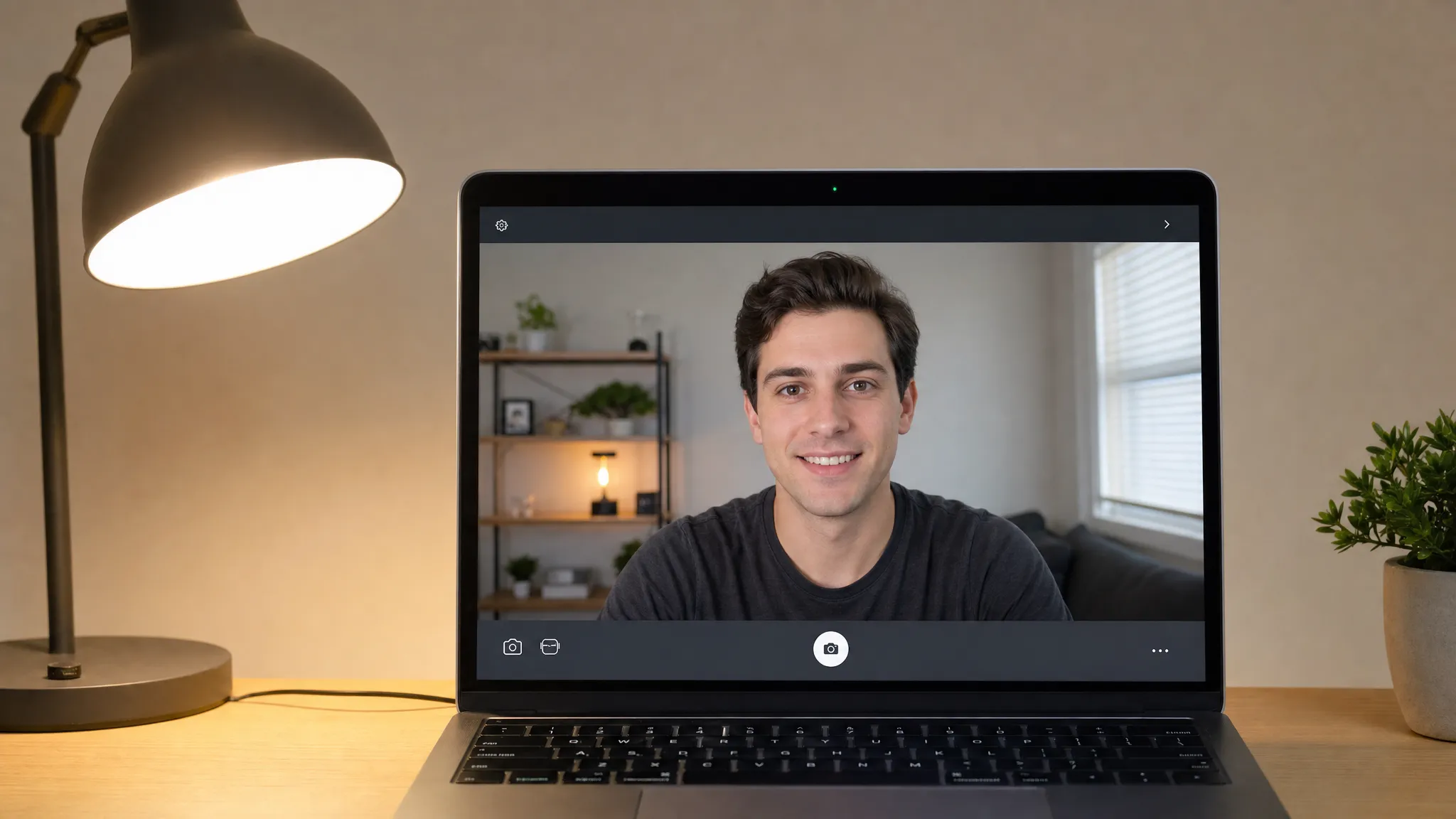
For a game like Gawkin, eye visibility matters. On-device blink detection works better when your eyes are not hidden by darkness, extreme angles, hair, or strong glare. A plain background also helps you stay easy to see during a live match.
Step 6: Test Before You Compete
Before jumping into a live match, run a quick test. Make sure your video preview is stable, your face is centered, and the game responds as expected.
If the game has a practice option, use it. Gawkin includes solo warm-up mode, which is useful for checking your setup and getting comfortable before a real 1v1 duel. It also gives you a chance to practice holding eye contact without immediately risking a loss.
Spend 20 to 30 seconds checking the basics. Can you see your eyes clearly? Is the camera frozen? Is the room too dark? Is the browser showing a camera indicator? If everything looks good, you are ready to match.
Step 7: Start a Match or Invite a Friend
Once your camera is working, choose how you want to play. Some camera games pair you with strangers, some let you invite friends, and others offer private rooms or practice modes.
In Gawkin, the core experience is a live 1v1 staring duel. You match with another player, use live chat if you want to trade trash talk, lock eyes, and try not to blink. If you want a lighter round, there is also a Try Not To Laugh mode, and if you want more pressure, a 64-player tournament mode supports larger competitive brackets. If you would rather watch first, spectator mode lets you observe live matches before joining one yourself.
This is where a browser camera game shines. There is no long installation process. The setup is mostly about permission, visibility, and confidence.
Privacy Tips for Browser Camera Games
Camera access is normal for this type of game, but you should still treat it thoughtfully. Browser permissions are usually site-specific, which means one site getting access does not automatically give every site access. Still, you should know how to turn access off when you are done.
Close the game tab after playing. Most browsers also show a camera icon or colored indicator while the camera is active. If you see that indicator when you are not playing, check your open tabs and browser permissions.
Use a background you are comfortable showing. Avoid displaying personal documents, private messages, family photos, or anything sensitive behind you. If the game includes live chat, keep it fun and avoid sharing personal information with strangers.
If you play often, review your browser's camera permissions once in a while. Remove access for sites you no longer use. This keeps your camera settings clean and reduces accidental permissions over time.
Common Setup Problems and Quick Fixes
Most browser camera game problems are easy to solve once you know where to look. Use this table to diagnose the most common issues.
| Problem | Likely cause | Quick fix |
|---|---|---|
| Camera prompt never appears | Browser permission was already blocked | Open site settings and change camera access to allow |
| Black camera preview | Another app is using the webcam | Close video apps, then refresh the game |
| Wrong camera is selected | Browser chose another device | Switch camera in game settings or browser settings |
| Video looks dark or grainy | Low light or backlighting | Face a lamp or window, and avoid bright light behind you |
| Match feels laggy | Weak connection or heavy background activity | Close downloads, streams, and extra tabs |
| Blink detection feels inconsistent | Eyes are hard to see | Improve lighting, clean the lens, and center your face |
| Game works on desktop but not mobile | Browser or permission differences | Update the browser or try the iPhone app if available |
If none of these fixes work, restart the browser and try again. A full device restart can also release camera resources that got stuck in the background.
Tips to Make a Camera Game More Fun
A good setup makes the game work. A good atmosphere makes it fun.
For staring contests, the biggest challenge is staying relaxed. Tension makes blinking harder to control. Sit comfortably, keep your eyes naturally open, and avoid staring into harsh light. If your eyes are already dry or irritated, take a break instead of forcing a long session.
It also helps to treat each match like a short performance. Your posture, lighting, and facial expression are part of the experience. If the game supports live chat, keep the trash talk playful. The point is to create pressure, not make the match unpleasant.
Try different modes depending on your mood. Solo warm-up is best for practice, live 1v1 is best for quick competition, tournaments are best when you want stakes, and spectator mode is useful when you want to learn how other players handle pressure.
Ready to set up and play?
Once your browser, camera permission, lighting, and connection are ready, setting up a free camera game takes less than a minute. Open Gawkin, allow camera access, warm up, and lock eyes.
Play Gawkin freeFrequently Asked Questions
Do I need to download anything to play a free camera game in my browser? Usually, no. Browser camera games are designed to run directly from a website. Gawkin can be played instantly in the browser with no download or login required, and it also offers an iPhone app for players who prefer that option.
Why does my browser ask for camera permission? Browsers require your approval before a website can use your webcam. This protects your privacy and ensures camera access only happens when you choose to allow it.
Can I play a browser camera game on my phone? Yes, many camera games work on mobile browsers if the site supports your device and browser. For Gawkin, an iPhone app is also available, which can be convenient for mobile play.
How do I stop a website from using my camera? Close the tab or revoke permission in your browser's site settings. You can also review saved camera permissions and remove sites you no longer use.
Why is my camera game not detecting my face or blinks correctly? The most common causes are poor lighting, glare on glasses, a dirty camera lens, extreme camera angles, or your face being partly out of frame. Improve lighting, center your face, and refresh the game.
Is it safe to play a camera game with strangers? It can be safe when you use a trusted site, keep personal information private, and manage your browser permissions. Use a neutral background and avoid sharing identifying details in live chat.